Release notes in Jira start from a version, which collects the work items marked "fixed in" it, and a generator that turns that list into a formatted note. Getting the note into Confluence, or out to a team the moment a version releases, is a second step on top, done with the Jira macro or an automation rule. Every step below is from Atlassian's own help pages, read 3 October 2026.
What release notes are in Jira
A Jira release note is the list of work items whose Fix versions field is set to one version, formatted and grouped by work type. The note is generated from the version, from whatever is in it at that moment.
Set up the version work items are assigned to
A version has to exist before anything can be marked fixed in it.
- Next to the space's name, select More actions (•••), then Space settings, then Versions.
- Select Create version.
- Name it, for example "3.2.2" or a code name.
- Optionally add a start date, a release date and a description.
- Select Save.
An issue gets that version two ways: drag it onto the version in the Backlog view's Versions panel, or open the issue and set its Fix versions field directly. Atlassian's own distinction matters here: Fix versions is the version the work is released in, and Affects versions is which versions a bug hits, which does not add the issue to a release. How a request reaches an issue in the first place, through a portal, a form or the work item collector, is covered on the feature requests page.
Generate release notes from a version, Jira Cloud
- Open the space's Releases tab and select the version.
- Select Release notes.
- Select Create release notes in Jira.
- Choose which work types to include, and which fields from each work item to show.
- Copy the result, as markdown or HTML, or save it to the version's Related work section.
Atlassian's own limits: release notes carry rich text and plain text fields, but "media such as images, videos, and other files are not yet supported." And if the note includes a panel, a date, an expand section or a status, the markdown copy option drops away and only HTML is offered. A Rovo assisted draft is also on this screen, gated on Rovo being enabled and Confluence active on the same site; where Atlassian's page uses that word, it is Atlassian's own AI feature, not anything VoteFirst builds.
Generate release notes from a version, Jira Data Center
The same job, a different screen. Open the project, select Releases (or Project settings > Versions on Jira Core), open the version, and select Release notes. Select Configure Release Notes, choose the project version and a style, then select Create.
Jira Data Center ships two built in formats: an HTML template and a text template, named releasenotes-html.vm and releasenotes-text.vm in Atlassian's own documentation. The generated note "can be copied and pasted to any other application." An administrator can add further formats by registering a new Velocity template in jira-config.properties and velocity-default.properties, but that is a server change, not a screen a release manager uses.
Automate release notes with Jira Automation
A rule built on Atlassian's own Version released trigger sends a release's issue list the moment the version is marked released, with no one opening the Release notes screen by hand. Atlassian's own worked example, read on its help page, is built from three pieces:
Trigger: Version released.
Action 1, Lookup issues, with the JQL:
project = 'project name' and fixVersion = '{{version.name}}'
Action 2, Send email, addressed to a group, with this subject and body, exactly as Atlassian documents it:
Subject: Release {{version.name}} included these items:
Body: <ul>{{#lookupIssues}}<li><a href="{{url}}">{{key}}</a>: {{summary}}; {{assignee.displayName}}</li>{{/}}</ul>
{{#lookupIssues}}...{{/}} loops over the issues the lookup step found, and inside the loop {{key}}, {{summary}}, {{url}} and {{assignee.displayName}} read from the current issue. Outside the loop, on a rule using the Version created, Version updated or Version released triggers, Atlassian documents {{version.name}}, {{version.id}}, {{version.description}}, {{version.released}}, {{version.releaseDate}}, {{version.archived}}, {{version.startDate}} and {{version.project.key}} as the properties of the version that fired the rule. On an issue, {{issue.fixVersions.releaseDate}} reads the release date off whichever fix version is attached to that issue.
Jira Automation also has a Create Confluence page action, but Atlassian's page says it creates the page without entering any content. For a page that lists the work items, use the Confluence option on the Release notes screen, below.
Confluence's release notes template, and showing a version's issues
The version's Release notes screen can write the note straight into Confluence. Choose the destination space or folder, the work types and the fields, then select Create in Confluence. Atlassian's page says this makes "a draft page that includes an expand containing links to all of your work items and the related fields you selected," and it needs Confluence and Jira on the same site.
Any Confluence page can also show a live, filtered list of Jira issues on its own, with no draft step. Select Insert > Jira work item, then build a JQL search, a saved filter, or paste a Jira issue URL straight onto the page; a URL like yourjirasite.com/browse/CONF-1234 inserts a single issue, and yourjirasite.com/issues/?jql=fixVersion=3.2 inserts the matching list. A release notes template written for customers rather than engineers fits on the same page, whether the list behind it comes from Jira or not. What release notes are, and who reads them, covers the writing itself.
The REST endpoint for a version's issues
The version endpoints Atlassian documents return counts rather than the issue list. GET /rest/api/3/version/{id}/relatedIssueCounts on Cloud, the same path under /rest/api/2/ on Data Center, returns issuesFixedCount (issues with that Fix versions) and issuesAffectedCount (issues with that Affects versions). To get the issues themselves, query the issue search endpoint with fixVersion = <id> in the JQL, the same condition the automation rule above uses.
What none of this gives you
Every path above lists work items: tickets with a status, an assignee, sometimes a story point estimate. None of Atlassian's version or release notes pages describe a vote count, so a request twelve customers asked for and a request one engineer filed look identical in the list. That gap, and what a customer facing roadmap needs instead, is covered on the Jira roadmap page. Notes written by hand also tend to stop: of 327 public changelogs measured in October 2026, the median posts four entries a year, and 61 percent had gone 90 days without one.
VoteFirst beside Jira
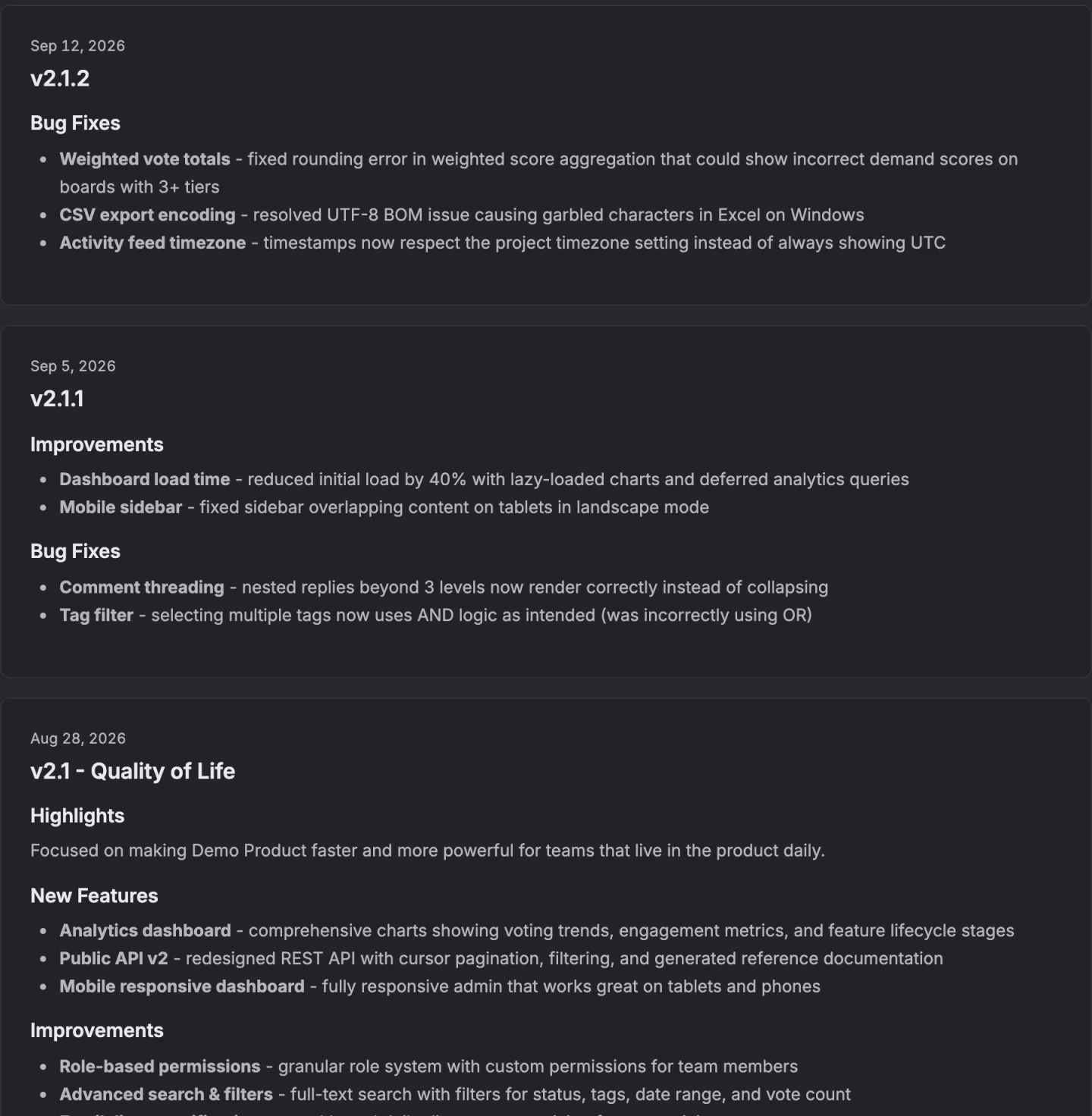
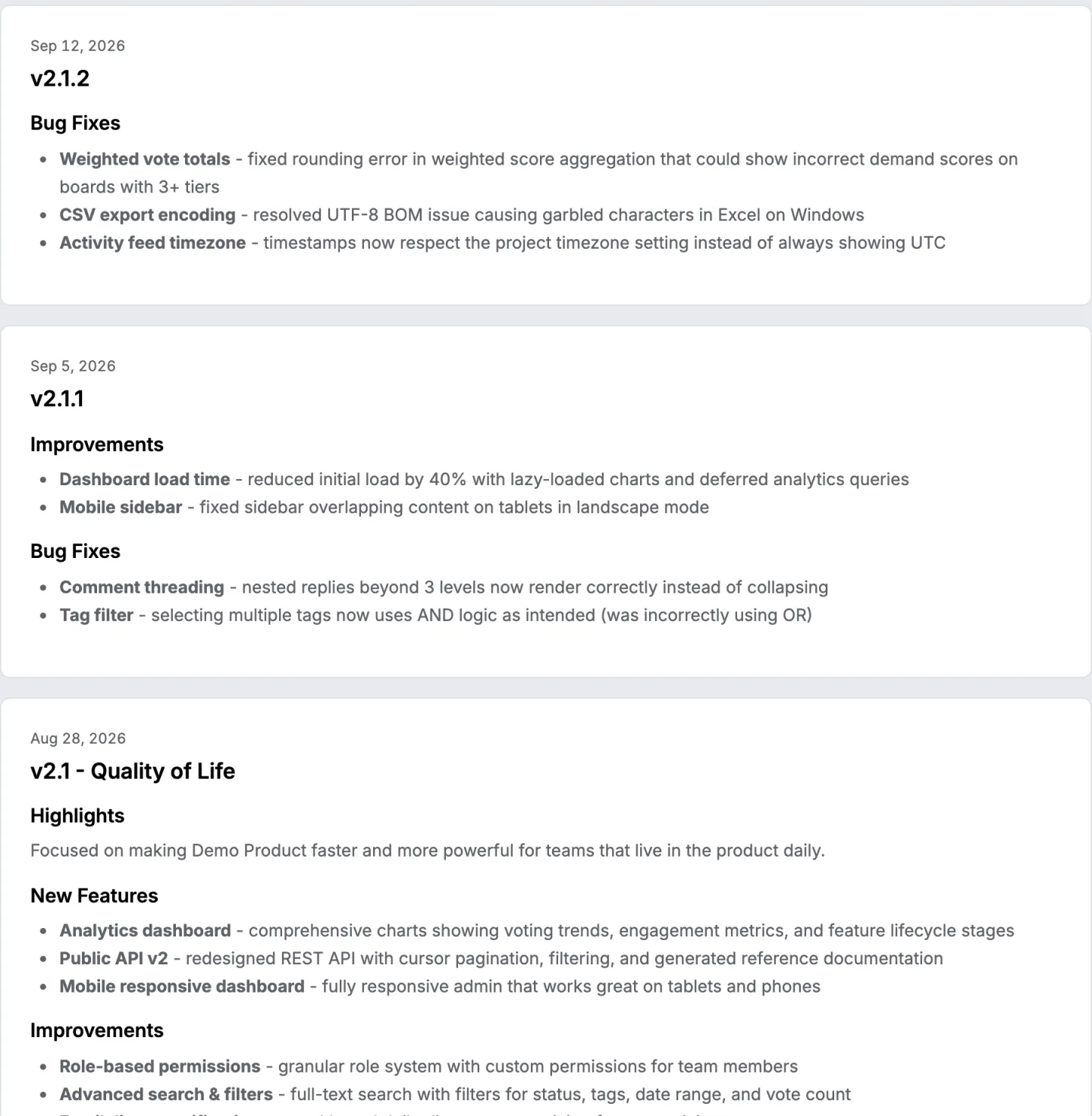
VoteFirst's changelog lists the requests a team moved to its Completed column, grouped into a release the owner publishes. Publishing emails each signed in voter whose own vote is on a request in that release, naming the headings they voted for; someone who voted anonymously left no address and is not emailed. More on how that email is built and sent.
VoteFirst has no Jira or Confluence integration of any kind. It does not read versions, work items or pages, and nothing on this page syncs with it. Lite is $9 a month for one project, Pro is $39 for unlimited projects, a custom domain, the API and a team; the changelog and its widget work on both. 14 days, a card at signup, then $9 or $39 a month.